
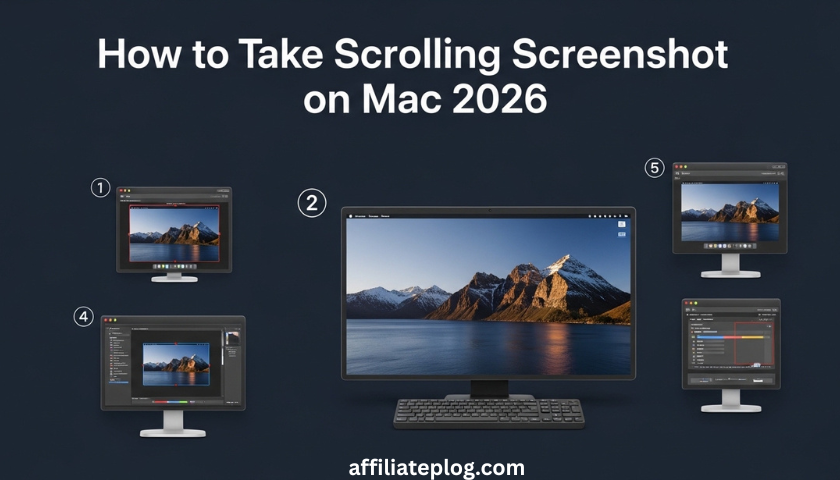
If you’ve been searching for how to take scrolling screenshot on Mac 2026, you’ll notice that macOS still doesn’t provide a built-in solution for full-page capture.
The regular shortcuts (Command + Shift + 3 or Command + Shift + 4) only capture what is visible on your screen.
That said, if you’re wondering about a full page screenshot Mac without app, there are still several easy and effective ways to achieve it.
Below are step-by-step methods to help you master how to take scrolling screenshot on Mac 2026 without stress.
1. The Quickest Free Way
Making a full-page screenshot via Firefox
If you want a full page screenshot Mac without app, Firefox offers one of the easiest built-in solutions.
Here is the trick:
- Launch the page you want to capture in Firefox
- Right-click on a blank part of the page
- Select “Take Screenshot”
- Click “Save full page”
Firefox will automatically scroll through the page and merge everything into one clean image.
This method is perfect if you’re learning how to take scrolling screenshots on Mac 2026 without installing extra tools.
Example:
You’re reading a long guide like “How to Start a Small Business in Nigeria.” Instead of taking multiple screenshots, you can use this full page screenshot Mac without app method and capture everything instantly.
2. Using a Browser Plugin (Best for Chrome or Edge)
Another popular method for taking scrolling screenshot on Mac 2026 is using extensions like GoFullPage.
Steps:
- Go to Chrome Web Store
- Search for “GoFullPage”
- Click “Add to Chrome”
- Visit the page you want to capture
- Click the GoFullPage icon
The extension scrolls automatically and creates a full image.
If you’re not using Firefox, this is one of the easiest alternatives to achieve a full page screenshot on Mac without an app-like experience, even though it requires a small extension.
Example:
Capturing a long product page or research document becomes easy when you use this method for how to take scrolling screenshot on Mac 2026.
3. Professional Apps (Best for Frequent Users)
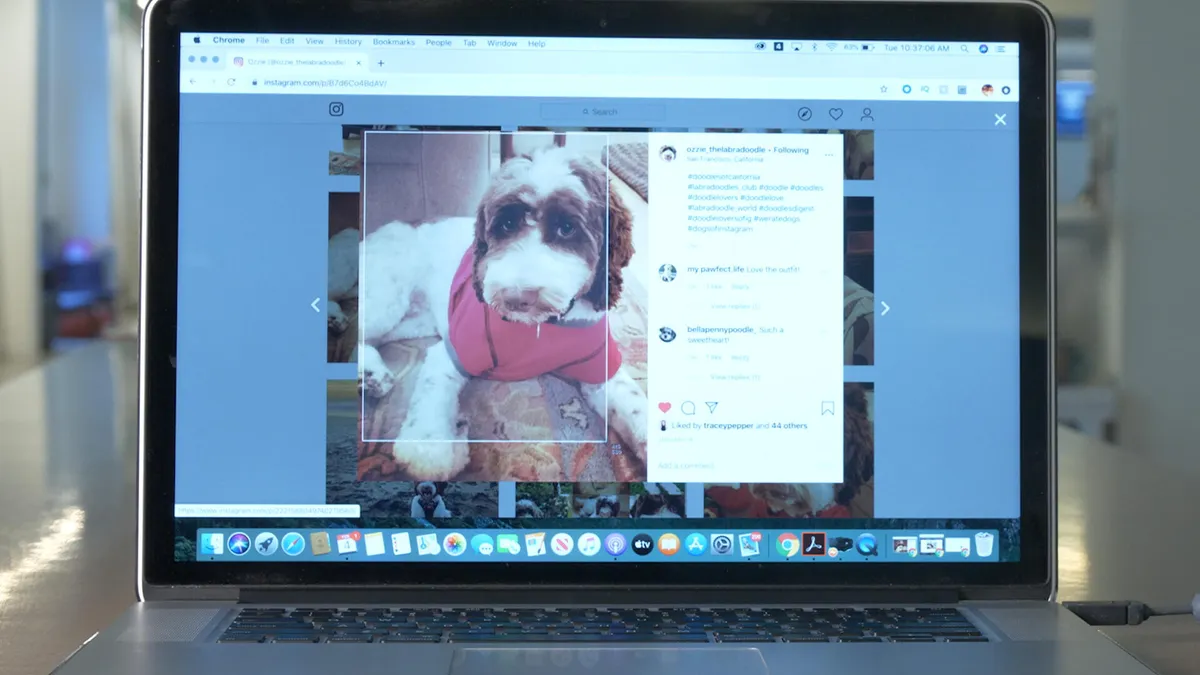
If you frequently need how to take scrolling screenshot on Mac 2026, investing in apps can save time and improve quality.
- CleanShot X: Offers scrolling capture, annotations, and editing tools
- Shottr: Lightweight and supports scrolling screenshots across apps
These tools go beyond a simple full page screenshot Mac without app, offering more flexibility and control.
Example:
If you’re preparing reports or presentations, these apps make how to take scrolling screenshot on Mac 2026 faster and more professional.
4. Quick Trick Without Installing Anything
If you really want a full page screenshot Mac without app, here’s a simple workaround:
- Open the page in Safari
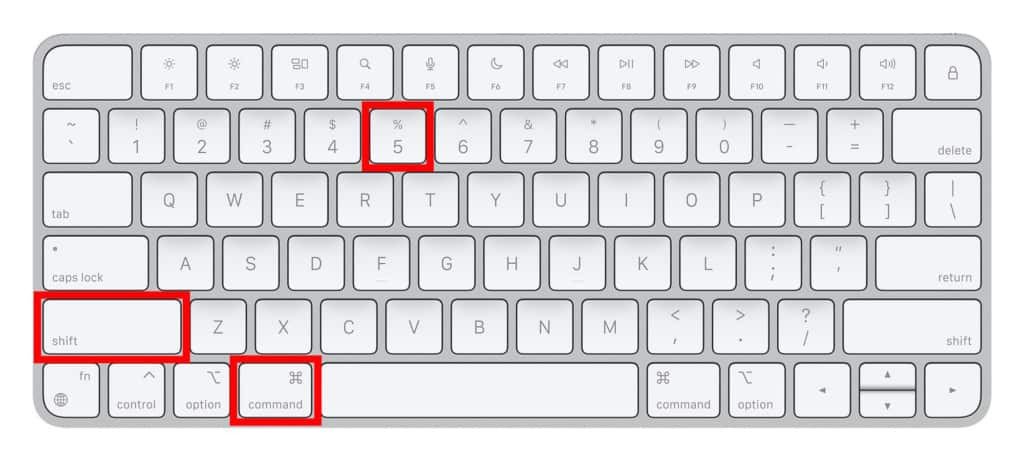
- Press Command + Shift + 5
- Select “Record Entire Screen”
- Scroll through the page
- Stop recording
You can later extract images from the video.
While this isn’t the perfect solution for how to take scrolling screenshot on Mac 2026, it works when you don’t want to install anything.
Final Tips for Better Results

- Zoom in slightly for clearer text before capturing
- Use apps if the page is very long
- Always review your screenshot
These small steps can improve your results when learning how to take scrolling screenshot on Mac 2026 effectively.
READ MORE: How to Stop Phone from Getting Hot in 2026: Easy Fixes & Phone Overheating Solutions
Conclusion
Even though macOS doesn’t natively support scrolling screenshots, there are many easy workarounds.
Whether you prefer a full page screenshot Mac without app using Firefox, a browser extension like GoFullPage, or advanced tools like CleanShot X, you have plenty of options.
Once you understand how to take scrolling screenshots on Mac 2026, capturing long content becomes fast and effortless.
This simple skill can boost your productivity whether you’re studying, working, or handling personal projects.

Chimezie Duru is a Lagos-based Digital Entrepreneur, Wikipedia Editor & Biography Writer, Affiliate Marketing Strategist, IT Consultant, and Blogging Coach with over 6 years of experience building and monetizing blogs in Nigeria’s digital space. He is the founder of InkRise Academy (InkRise Digital Concepts) and creator of the Ink To Income Masterclass. A 9-module blogging course for aspiring Nigerian & African writers and bloggers covering SEO, content strategy, and monetisation.
As the creator of AffiliatePlog.com, Chimezie writes from real experience on Wikipedia editing & biography writing, affiliate marketing, online earnings, and digital tools for Nigerian freelancers and content creators. He also works as a freelance Business and Data Analyst, IT Consultant & System Administrator, bringing an analytical edge to every content and business decision.