

Set Up A Professional Custom Email Without the Monthly Bill.
Sending a quote to a new customer from a random Gmail or Yahoo address still works, but it quietly says “small and unsure.” An address like hello@yourbrand.com says the opposite before the person reads a single word.
The good news is that a professional custom email doesn’t have to cost six or seven dollars per person every month. In this guide, I will walk you through two free ways to build a professional custom email for your business, step by step, in plain English.
Before we start, one honest note. The email service itself can be free, but the domain name (the yourbrand.com part) is not.
A .com domain usually costs about $ 9 to $ 11 a year as of 2026, depending on where you buy it. So when you see “completely free business email” online, be careful. What you can really get for free is the mailbox. The domain is a small yearly cost, and it is worth every cent.
What You Need Before You Start
You do not need to be a tech person for this. You need four simple things:
- A domain name. This is your web address, such as yourbrand.com. We will cover how to pick and buy one in a moment.
- About 45 to 60 minutes. Most of that time is waiting for settings to update.
- A Gmail account. You need it for the second method, and it is handy for the first.
- Access to your DNS settings. DNS (Domain Name System) is the control panel that tells the internet where your website and your email live. Think of it as the address book for your domain. You will copy a few lines into it, and I will show you exactly which ones.
If that last part sounds scary, relax. You will only copy and paste. Nothing here needs coding.
Step 1: Get Your Domain Name

Your domain is the foundation of your professional custom email, so choose it with care.
Keep it short and easy to spell. If you have to spell it out on the phone, it is too hard. Avoid numbers and dashes where you can.
Pick .com if possible. Customers type .com by habit. Other endings work too, but .com is the safest choice for a worldwide audience.
Check the renewal price, not just the first-year price. Several 2026 price comparisons show that Cloudflare Registrar, Porkbun, and Spaceship sell .com domains at roughly 9 to 11 US dollars a year, with renewals close to the same price.
Some registrars advertise a very cheap first year, then raise the price noticeably when you renew. Prices change often, so always read the renewal line before you pay.
Switch on privacy protection. This hides your home address and phone number from public domain records. Most of the registrars above include it for free.
Turn on auto-renew. This matters more than people think. If your domain expires, your email stops working, and customers’ messages can bounce. Put a reminder in your calendar as well.
Once you own the domain, you are ready to pick your method.
Method 1: Zoho Mail Free Plan (A Real Inbox)
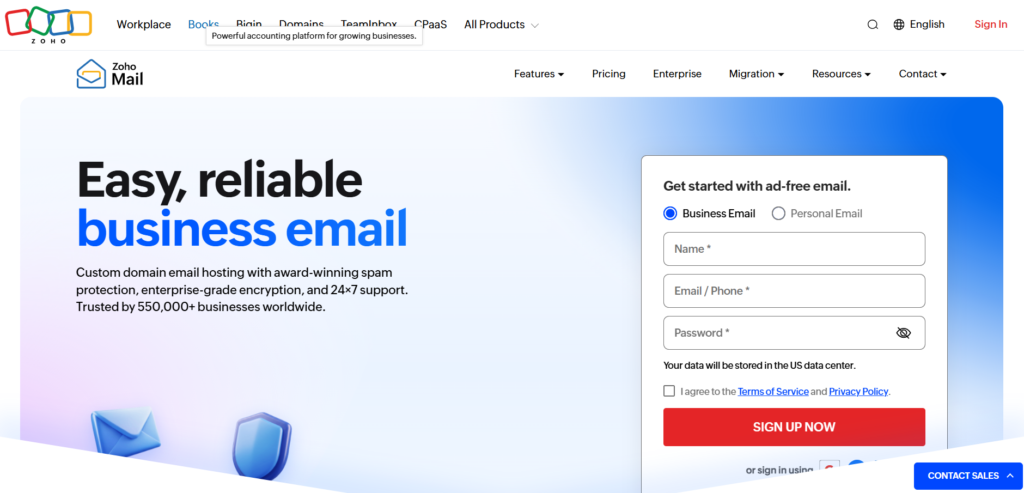
Zoho Mail offers a free plan that gives you an actual mailbox on your own domain, with its own login, storage, and mobile app. This is the closest thing to “real” business email without paying.
What the free plan includes. According to 2026 reviews of the plan, you get up to 5 users, 5 GB of storage per user, one custom domain, and a 25 MB attachment limit. You use it through Zoho‘s website and mobile apps.
What it does not include. The free plan does not support IMAP (Internet Message Access Protocol) or POP (Post Office Protocol). In simple words, that means you cannot connect it to desktop email programs like Outlook or Apple Mail.
You are limited to Zoho’s own web and mobile apps. Reports also say the free plan is only offered in select regions, so check that it appears for you when you sign up. Zoho can change its plans, so confirm the details on its pricing page before you rely on them.
How to set it up
- Sign up for the free plan. Go to Zoho Mail, choose the free plan for custom domains, and enter your domain name.
- Prove you own the domain. Zoho gives you a short TXT record (a line of text) or a CNAME record to add to your domain provider’s DNS settings. Copy it exactly, save it, then click the Verify button in Zoho.
- Create your first mailbox. Pick the name before the @ sign, such as hello, info, or your first name.
- Add the MX records. MX (Mail Exchange) records tell the internet to deliver your mail to Zoho. Zoho shows you the exact values to add. For many accounts, they look like mx.zoho.com, mx2.zoho.com, and mx3.zoho.com with different priority numbers, but your region may use different ones, so always copy from your own Zoho dashboard, not from a blog post.
- Add the SPF and DKIM records. These two records help your emails reach inboxes instead of spam. I explain them in simple words further down.
- Send yourself a test. Send a message to your Gmail, reply to it, and check that both directions work.
Remove any old MX records for the domain before adding Zoho’s. Having two email services fighting over one domain is the most common reason new setups fail.
Method 2: Cloudflare Email Routing Plus Gmail (Free, Flexible)

This method uses a different idea. Instead of creating a new inbox, you forward mail sent to your professional custom email into your existing Gmail. Then you tell Gmail to send replies as your business address. You keep one inbox, 15 GB of Gmail storage, and the apps you already know.
What the free forwarding includes. Cloudflare Email Routing is free. It allows up to 200 forwarding rules per domain, and each address forwards to one destination inbox.
The important catch is that your domain must use Cloudflare’s DNS. You do not have to buy the domain from Cloudflare, but you do need to point its nameservers to Cloudflare, which is free to do.
The big limit. Cloudflare only receives and forwards mail. It does not store messages, and it cannot send mail. That is why we add Gmail to handle the sending.
How to set up receiving
- Create a free Cloudflare account and add your domain. Cloudflare scans your existing DNS records and copies them over.
- Change your nameservers at your registrar to the two Cloudflare gives you. This can take from a few minutes to a few hours.
- Open Email Routing in your Cloudflare dashboard for the domain and click Enable. Cloudflare adds the required records for you automatically.
- Create an address. For example, hello@yourbrand.com, and set the destination to your Gmail.
- Verify your Gmail. Cloudflare emails you a link. Click it to confirm.
- Optional catch-all. This forwards mail sent to any address at your domain, so a typo like helo@yourbrand.com still reaches you.
A warning before you click enable: Cloudflare’s own setup replaces other email services on the same domain. If your domain already has working email somewhere, such as Google Workspace, do not switch this on.
How to set up sending from Gmail
- Turn on 2-Step Verification in your Google account, because Google requires it to make an app password.
- Create an app password for Mail in your Google account’s security settings. Copy the 16-character code.
- In Gmail, open Settings, then Accounts and Import, then Send mail as, and click add another email address.
- Type your name and your business address. Untick “Treat as an alias.”
- For the SMTP (Simple Mail Transfer Protocol) server, which is the outgoing mail server, enter smtp.gmail.com. Use your full Gmail address as the username and the app password as the password.
- Gmail sends a confirmation code to your business address. Thanks to forwarding, it arrives in your Gmail. Enter it, and you are done.
Now when you write a new email, you can choose your business address in the From line.
An honest limitation of this trick. Because your message leaves through Gmail’s servers, some recipients may see your Gmail address or a small note such as “via gmail.com,” depending on their email app. Google can also change how this feature works, so test it with a friend before you put the address on your business cards.
A third option. If you do not want to move your DNS to Cloudflare, ImprovMX is another free forwarding service. Its free plan covers one domain, 25 addresses, and 500 forwarded emails a day, and it is receive-only, with sending available only on paid plans.
Which Method Should You Choose?
| Zoho Mail Free | Cloudflare Plus Gmail | |
|---|---|---|
| Real separate inbox | Yes | No, uses your Gmail |
| Sending | Built in | Through Gmail, with the “via” caveat |
| Storage | 5 GB per user | Your Gmail storage |
| Desktop apps like Outlook | No | Yes, through Gmail |
| Number of addresses | Up to 5 users | Up to 200 forwarding rules |
| Best for | Looking fully professional | Solo owners who love Gmail |
My advice: if you want your professional custom email to look and feel like the real thing, with proper sending, start with Zoho. If you already live inside Gmail and just want a handful of business addresses, go with Cloudflare plus Gmail. Either way, do not use both on the same domain at the same time.
How to Keep Your Emails Out of Spam

Nothing is more frustrating than setting up a professional custom email and having your replies land in a customer’s spam folder. Three small records make a big difference, and they are the same ones inbox providers look at.
- SPF (Sender Policy Framework) is a list of services allowed to send mail for your domain. It is like a guest list at the door.
- DKIM (DomainKeys Identified Mail) adds a digital signature to your emails, proving they were not changed on the way.
- DMARC (Domain-based Message Authentication, Reporting and Conformance) tells receiving servers what to do if a message fails those checks, and sends you reports.
Google asks every sender to set up at least SPF or DKIM. Larger senders, roughly 5,000 or more messages a day to Gmail users, must set up all three. You will not send that much, but doing all three from day one is smart and costs nothing.
Zoho walks you through SPF and DKIM in its dashboard. For DMARC, add a TXT record named _dmarc with a starting value like this, using your own address:
v=DMARC1; p=none; rua=mailto:hello@yourbrand.com
The “p=none” part simply means “watch and report, do not block anything yet.” It is a safe place to start.
Then run a test. Send an email to a Gmail account, open it, click the three dots, and choose “Show original.” Look for PASS next to SPF, DKIM, and DMARC. If you see FAIL, recheck your DNS records for typos.
Common Mistakes to Avoid
Letting the domain expire. Auto-renew and a calendar reminder solve this.
Running two email setups at once. Only one provider should control your MX records.
Treating forwarding as a backup. Forwarding services do not keep your mail. If the destination inbox has problems, messages can be lost or bounced, so keep your Gmail healthy.
Using it for mass email. A free setup is built for normal conversations, not newsletters or bulk promotions. Use a proper email marketing tool for those.
Skipping the spam checks. Ten extra minutes on SPF, DKIM, and DMARC saves months of “did you get my email?” messages.
Forgetting your registrar login. Store the password and recovery email somewhere safe. Your domain is the key to your entire professional custom email setup.
When Free Stops Being Enough
Free plans are a great start, but you should know when to upgrade. Consider a paid plan if you need desktop email programs, more than five mailboxes, larger storage, shared calendars, or priority support.
The upgrade does not have to be expensive. A 2026 pricing review lists Zoho Mail’s paid Lite plan at around 1 US dollar per user per month, compared with roughly 7 US dollars for Google Workspace and 6 for Microsoft 365. Prices change, so check each provider’s pricing page before you decide. The good news is that your domain stays yours, so you can switch providers later without changing your address.
Frequently Asked Questions
Is a professional custom email really free? The mailbox or forwarding can be free, but you must pay a small yearly fee for the domain name, roughly 9 to 11 US dollars for a .com as of 2026.
Can I send and receive with these free options? Yes. Zoho does both inside its own inbox. With Cloudflare, you receive through forwarding and send through Gmail.
How many business email addresses can I create? Zoho’s free plan allows up to 5 users on one domain. Cloudflare Email Routing allows up to 200 forwarding rules per domain.
Can I use Outlook or Apple Mail with the Zoho free plan? No. The free plan does not include IMAP or POP, so you use Zoho’s web and mobile apps. Gmail users can connect Outlook to Gmail itself.
Will my emails go to spam? Not if you set up SPF, DKIM, and DMARC correctly and avoid sending bulk promotional mail. Always send a test to Gmail and check the PASS results.
Do I need a website to have a professional custom email? No. You only need to own the domain. A website is optional.
Can I upgrade later without changing my address? Yes. Your address belongs to your domain, so you can move to a paid provider anytime and keep the same address.
What if the free plan changes? Free plans can change, so keep your domain in your own name and keep a backup of important emails. Switching later is easy as long as you control your domain.
Conclusion
A professional custom email is one of the cheapest trust boosters a small business can have. You now know the honest picture: the domain costs a small yearly fee, and the mailbox can be free through Zoho or through Cloudflare plus Gmail.
Pick the method that fits how you work, copy your DNS records carefully, set up SPF, DKIM, and DMARC, and test before you share your new address.
Set aside one hour this week, buy your domain, and follow the steps above. By tonight, you could be sending your first message from hello@yourbrand.com, and your customers will notice the difference.

Chimezie Duru is a Lagos-based Digital Entrepreneur, Wikipedia Editor & Biography Writer, Affiliate Marketing Strategist, IT Consultant, and Blogging Coach with over 6 years of experience building and monetizing blogs in Nigeria’s digital space. He is the founder of InkRise Academy (InkRise Digital Concepts) and creator of the Ink To Income Masterclass. A 9-module blogging course for aspiring Nigerian & African writers and bloggers covering SEO, content strategy, and monetisation.
As the creator of AffiliatePlog.com, Chimezie writes from real experience on Wikipedia editing & biography writing, affiliate marketing, online earnings, and digital tools for Nigerian freelancers and content creators. He also works as a freelance Business and Data Analyst, IT Consultant & System Administrator, bringing an analytical edge to every content and business decision.